CPU & GPU
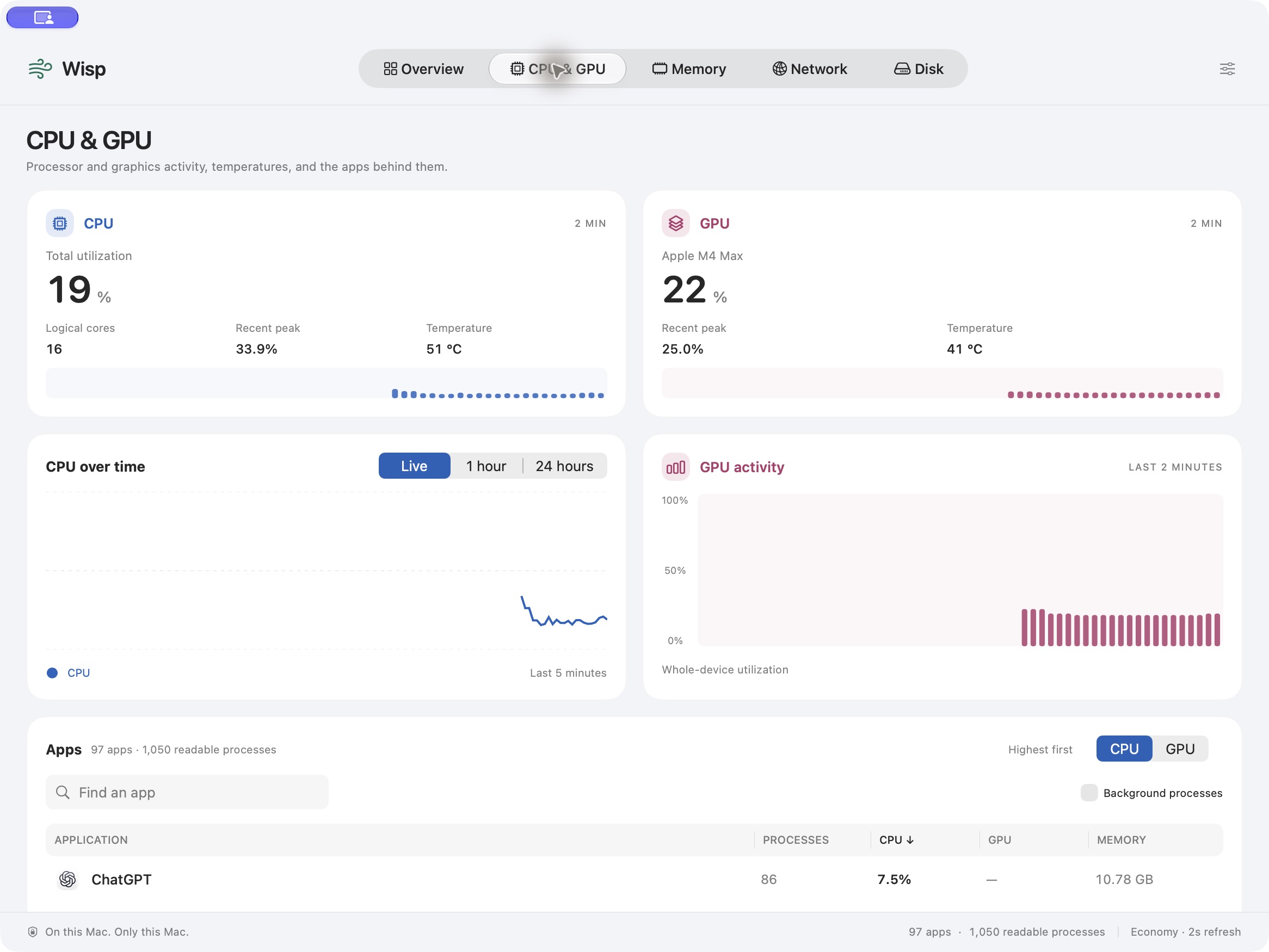
Whole-Mac CPU utilization, logical cores, available GPU models and utilization, recent peaks, temperatures, and two-minute overview trends. The processor view adds CPU history and a separate GPU chart.
 Wisp
Get Wisp — free
Wisp
Get Wisp — free
A little clarity for everything going on inside.
Meet the quiet, native system monitor for your Mac.
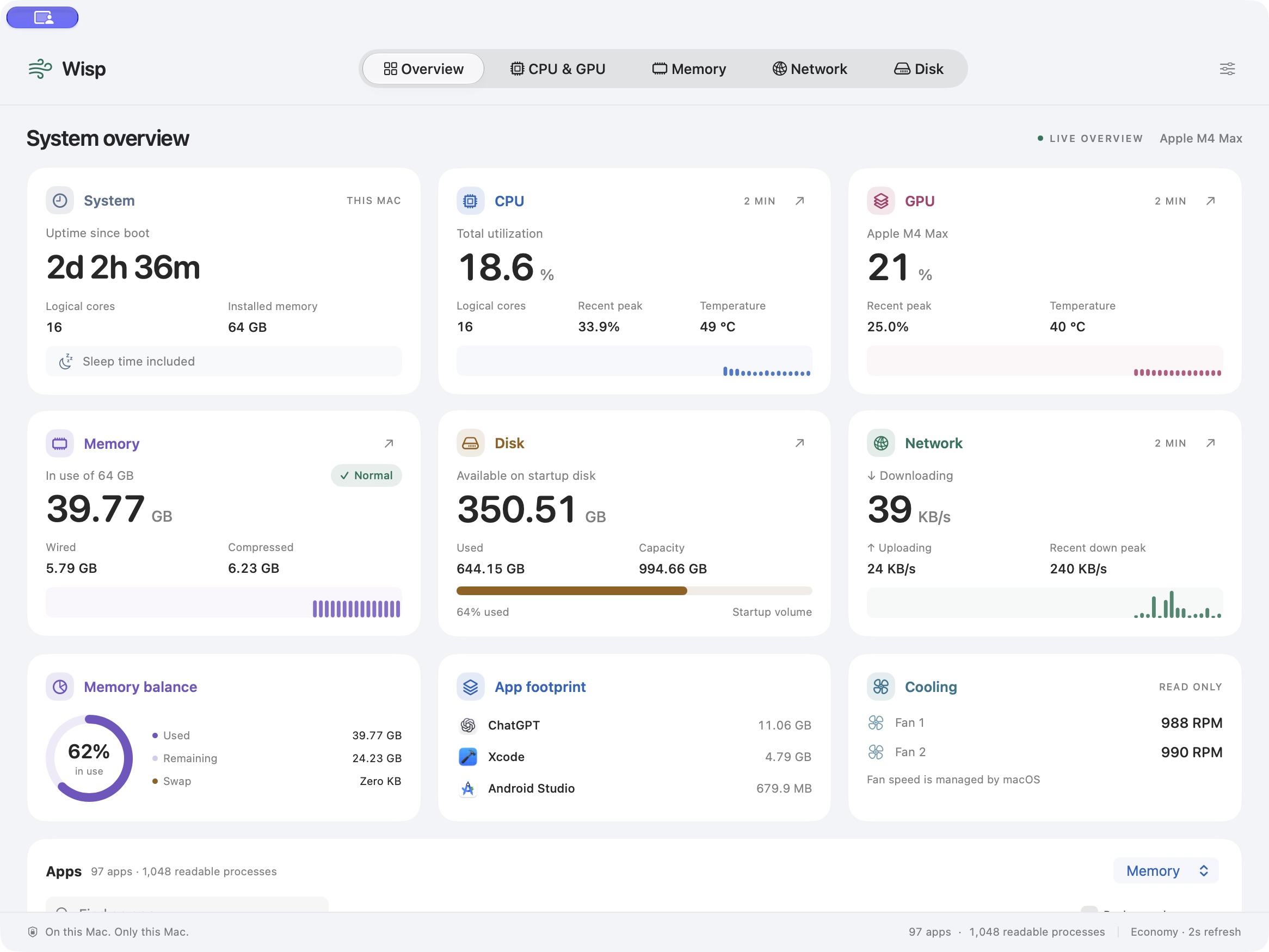
A CLEARER PICTURE
From a busy processor to a filling disk,
see what your Mac is doing in one place.
FOLLOW THE ACTIVITY
Check the processor load, explore recent trends, and see available app activity with helper processes grouped together.

Captured from the signed, notarized Wisp 1.0 download on an M4 Max. Readings vary by Mac, workload, and macOS permissions.
A LOOK UNDER THE HOOD
See CPU and GPU load alongside available temperatures. Check each fan’s speed in the overview, and open the processor view to connect the numbers with recent activity.
Readings average available built-in thermal sensors. Hover a temperature in the app for the sensor count and hottest reading.
View RPM for each readable fan. Wisp reports cooling activity; macOS manages fan speeds.

INCLUDED IN WISP 1.0
Here’s what the free direct-download app can show you.
Whole-Mac CPU utilization, logical cores, available GPU models and utilization, recent peaks, temperatures, and two-minute overview trends. The processor view adds CPU history and a separate GPU chart.
Used and remaining memory, memory pressure, wired and compressed memory, swap, and a visual memory balance. See the largest app footprints, with helper processes grouped together.
System download and upload rates over physical Wi-Fi and Ethernet interfaces. Separate recent charts show each direction, scaled to its own peak. VPN and loopback overlays are excluded to avoid double counting.
Startup-volume capacity, used and available space, including macOS’s reclaimable-space estimate when available. The Disk view adds physical-drive read/write rates, visible local volumes, and readable per-app disk activity ranked by Reading or Writing.
Available built-in CPU/GPU temperatures and individual fan RPM. Hover a temperature for more sensor detail. Fanless hardware and unavailable readings are identified; fan control stays with macOS.
Search apps, include background processes, and sort readable CPU, GPU or memory activity. Inspect grouped helpers and available disk usage. Quit or Force Quit an app only after confirmation; background processes are read-only.
CPU and memory offer Live, 1-hour and 24-hour views. System snapshots are saved once per minute and retained for 30 days. GPU and network trends stay in memory. Delete saved history in Settings whenever you want.
See your Mac’s chip, installed memory, logical core count and uptime, including time asleep. On a Mac with a readable built-in battery, the overview shows charge and whether it’s plugged in or running on battery.
A native macOS interface that follows light and dark appearance. Choose Economy or standard sampling, enable launch at login, open the in-app privacy policy, and check the installed version in Settings.
CPU and GPU have different scales. CPU is shown as a share of the whole Mac. Per-app GPU is an execution-time ratio, can exceed 100%, and is not a share of the system GPU total. On multi-GPU Macs, the headline uses the highest available device utilization.
App totals can be partial. macOS may restrict process measurements. Short-lived or unreadable helpers can leave gaps; app disk totals may differ from drive totals. Summed app memory footprints can overlap in shared memory.
History is sampled. Saved history contains minute snapshots while Wisp is running, not every intermediate peak. Sleep and slower sampling can miss bursts. The Live CPU/memory chart covers five minutes; overview mini charts cover two.
Space and memory use different units. Disk capacity uses decimal GB. Memory uses binary units. Available disk space can include reclaimable storage reported by macOS; physical drive activity excludes virtual disk images to avoid double counting.
THERE WHEN YOU NEED IT
Choose how often Wisp checks in. Economy mode is the default, and sampling slows down when the dashboard and menu-bar panel are hidden.
Default Economy mode: 2 seconds while visible, 10 in the background. Standard mode uses 1 and 5 seconds. Sampling pauses during sleep; slower sampling may miss short bursts. GPU, fan and temperature readings refresh at most once every 5 seconds, and can refresh less often in Economy mode.
ON THIS MAC. ONLY THIS MAC.
No accounts. No tracking. No monitoring data sent anywhere. System CPU and memory history stays on your Mac for up to 30 days. App names and process data stay in memory.
Read the privacy policySMALL APP. BIG PICTURE.
All of Wisp. Free to download.
No subscription, account, or license key.
One command. You’re all set.
brew install --cask PhanithNY/tap/wispYes. Wisp 1.0 is free to download and use. There’s no subscription, account, or license key. You can install it from GitHub Releases or with Homebrew.
Wisp requires macOS 26 or later. The download includes Apple silicon and Intel builds. Runtime testing so far has been on Apple silicon with macOS 27; macOS 26 and Intel hardware testing remain outstanding. See the release notes for the current limitations.
The app makes no network requests and sends no monitoring data to us. CPU and memory history is stored locally and can be deleted in Settings. GitHub hosts the downloads and support issues under its own privacy policy.
macOS permissions and hardware support affect what Wisp can read. Temperature, fan, GPU, and per-app readings may be unavailable on some Macs. Wisp displays a dash or an explanation instead of making up a value.
Wisp 1.0 is a monitor. It does not include fan control, disk cleanup, alerts, per-app network traffic, per-app history, history export, project or port inspection, audio mixing, or Bluetooth device monitoring.
You can choose Quit or Force Quit for an app from its details, with confirmation before Wisp acts. Force Quit can lose unsaved work. Wisp never terminates an app automatically, and background processes are read-only.
Choose Wisp → Quit Wisp Completely before updating. Ordinary Quit keeps monitoring in the menu bar. Download the new version, or run brew upgrade --cask wisp if you installed with Homebrew. Launch at login is optional.